
How to Export Your Inventory as a CSV
Your inventory is yours. StowQR lets you download the whole thing as a CSV anytime — a plain file you can keep as a backup, hand to an insurer, or open in a spreadsheet.
Step 1: Open Settings
Head to Settings, where your account and data options live.
Step 2: Choose Data Export
Tap Data Export. StowQR builds a CSV of your complete inventory: every tote and every item in one file.
Step 3: Save or share the file
Send the CSV wherever you want it through the iOS share sheet. Save to Files, email it to yourself, or AirDrop it to a Mac. It's your data leaving on your terms, no lock-in.
Step 4: Open it anywhere
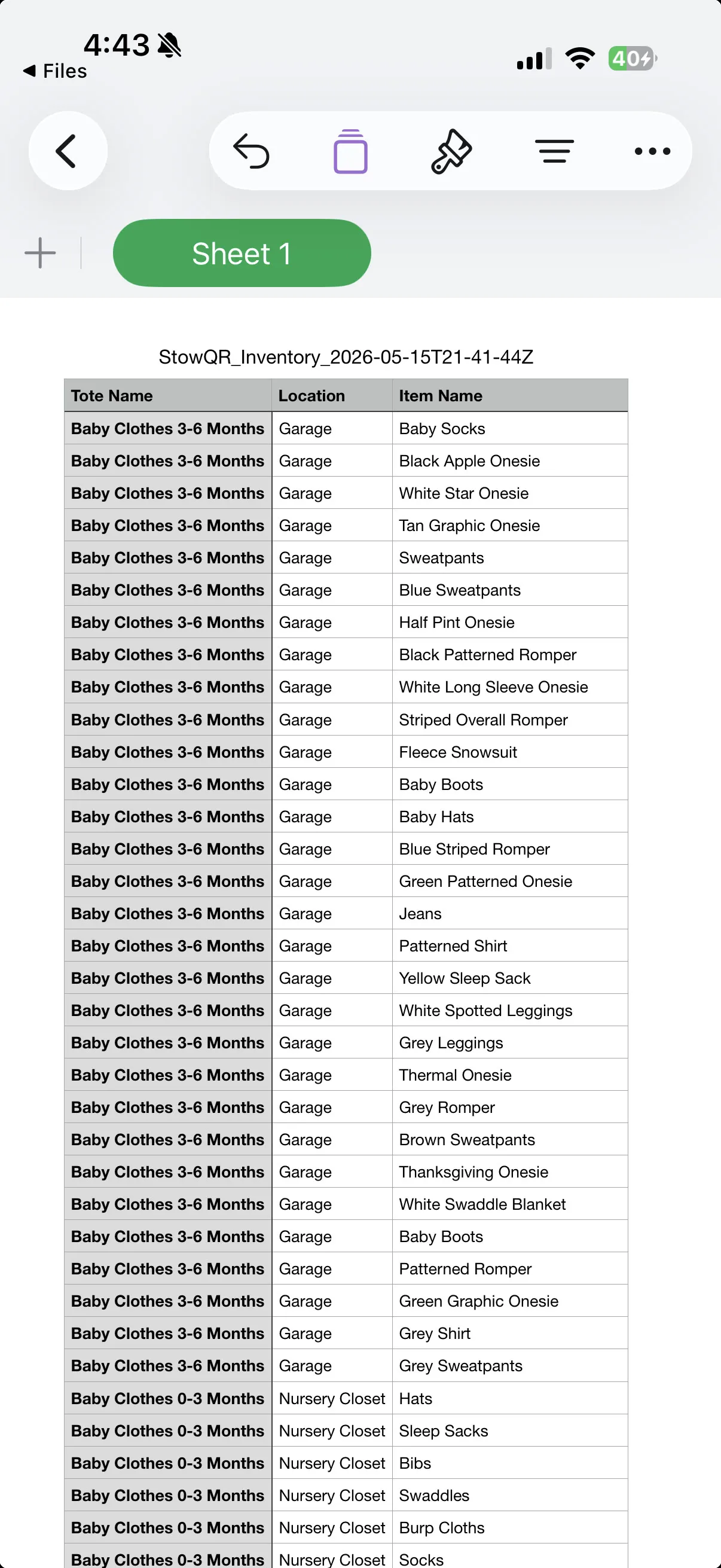
The file opens in Numbers, Excel, Google Sheets, or anything that reads CSV. Two common uses: a timestamped insurance record of what you own, and a periodic backup you keep outside the app. After a big move or season of cataloging, export a fresh copy.
Build a record worth exporting
Catalog your totes first, then export anytime. Get started today.
Free to start on iPhone and iPad and Android.