
StowQR 2.0: iPhone & iPad Inventory App Redesign
Organizing shouldn't feel like a chore. StowQR 2.0 is a ground-up redesign of the iPhone and iPad app — built so cataloging a box takes seconds and finding what's inside takes one tap.
Itemify, Front and Center
Typing out every item in a box is why most people quit inventorying after the second tote. Itemify uses your camera instead — point it at the open box, take a photo, and the items show up named and pictured, ready to confirm. A bin of holiday decorations that would take ten minutes to type takes about ten seconds.
In 2.0 we stopped hiding the magic. New totes open with a Snap & Itemify hero button — one tap to start.
For totes that already have items, a tip points out the sparkles button above the keyboard the first time you go to add something.
QR Labels That Actually Scan
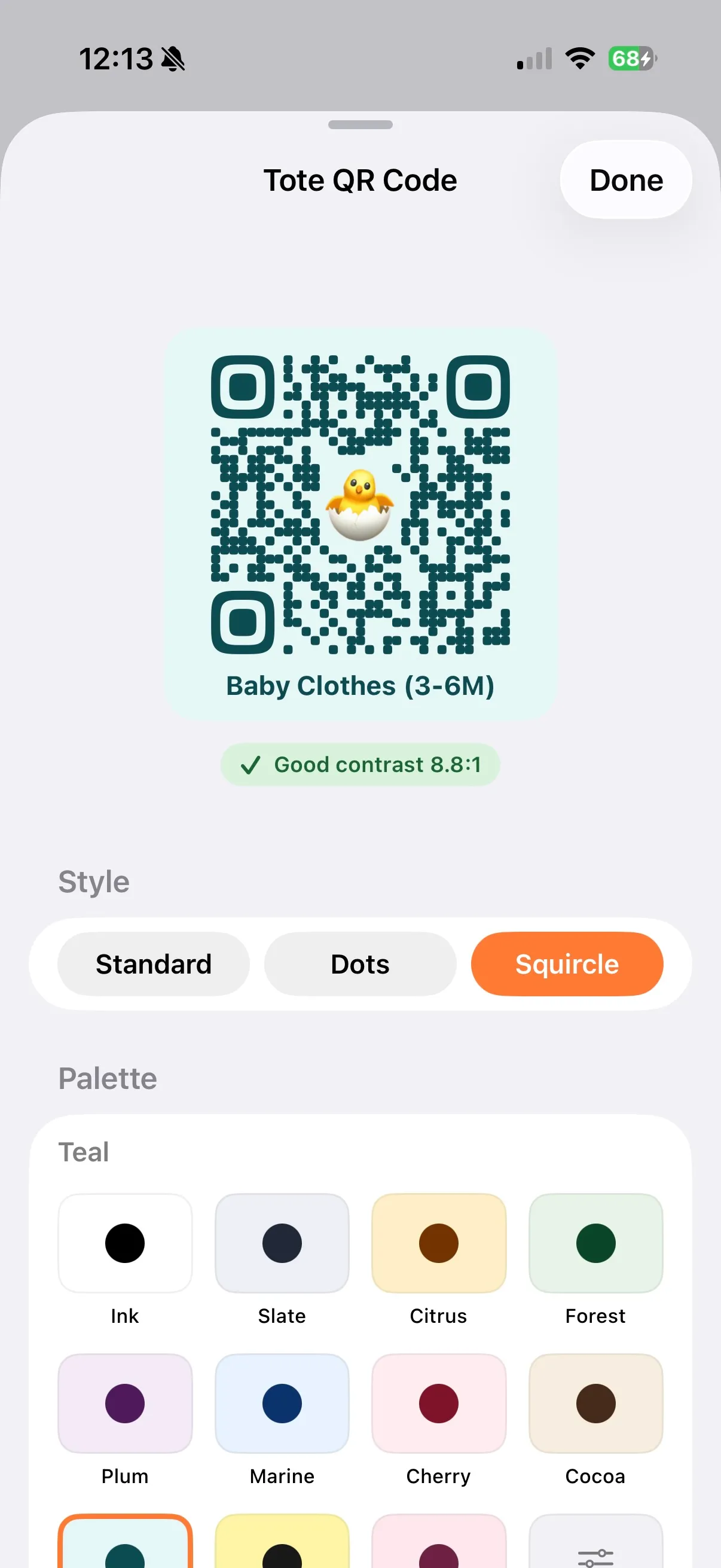
Tap the QR on the tote view and a sheet slides up with eleven ready-made color combos — Ink, Crimson, Forest, Lagoon, Plum, Indigo, Midnight, and more. Tap one and the label looks designed. No color pickers, no guessing whether two colors play nice together.
Want to mix your own? Pick any two colors you like. A little badge under the preview tells you whether your phone is still going to read the code from across the garage. Green means you're good. If the colors are too close, the badge gives you a heads-up before you print.
Style, emoji, whether to print the tote name on the label — all in the same sheet. Tweak, see the change live, done.
Move Items Between Totes
Stuff moves. The winter coats come out of the bedroom-closet tote in May and go into the basement tote. Before 2.0, that meant deleting the items in one tote and recreating them in the other — losing the photo, the name, the history.
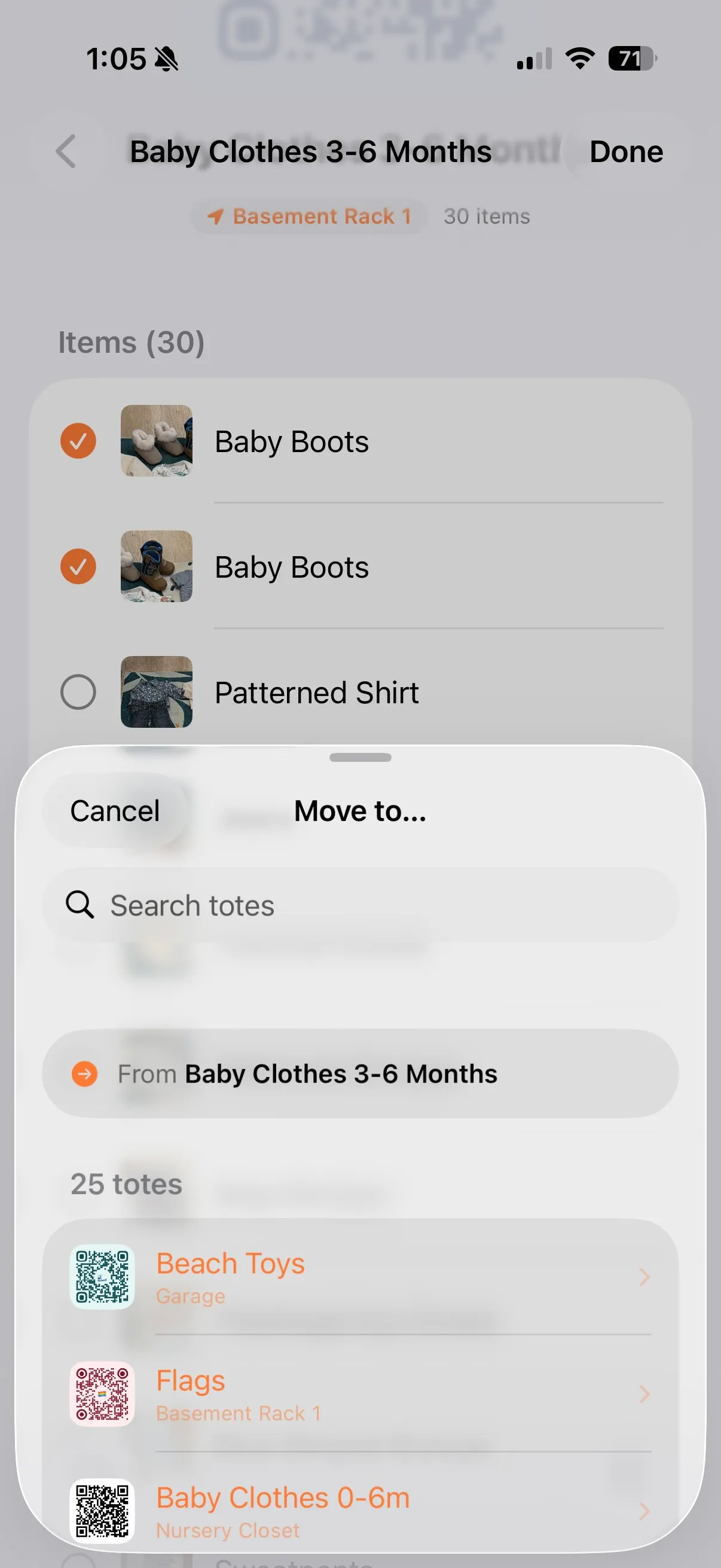
Now, swipe an item right-to-left and tap Move. A picker opens with every other tote in your inventory and a search field at the top, so the right destination is one tap away even when you have dozens of boxes. The item lands in its new home with photo, name, and history intact.
Moving a whole pile at once? Tap the ellipsis at the top right of the tote and choose Select Items. Check off everything that's going, hit Move, pick the destination. The whole stack lands in the new tote in a single step.
Find Anything in Seconds
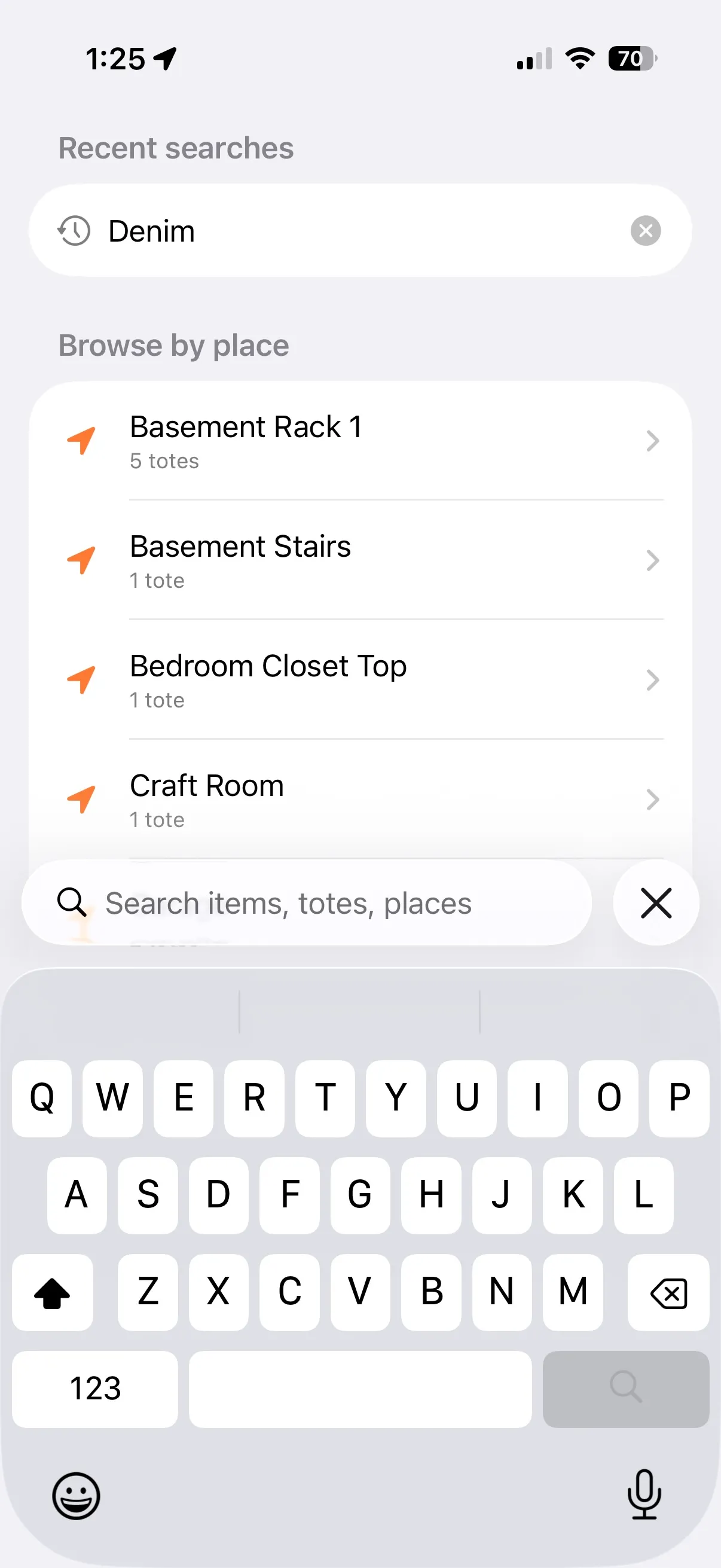
Cataloging is only useful when finding is fast. 2.0 puts a search bar at the top of the app that looks across every item and every tote in one shot.
Type "drill" — the drill pops up with the tote it's in right underneath. Tap it and the app jumps into the tote and highlights the row, so the answer doesn't get lost on the way.
Before you've typed anything, the screen is already useful: your recent searches sit at the top, one tap away from whatever you were looking for last time.
Every Place Has a Page
Every tote has a location — basement, garage, attic, room 2B. In 2.0 those locations get pages of their own.
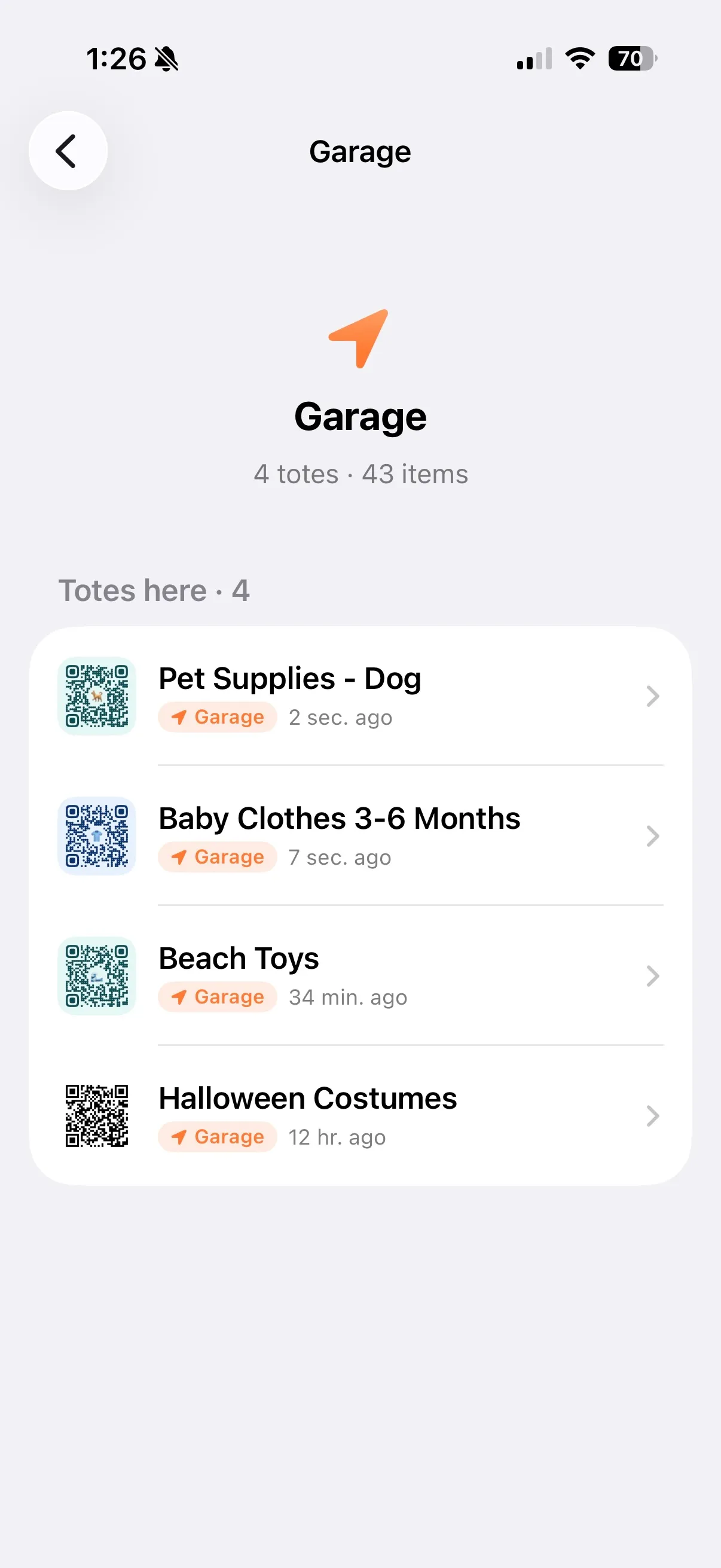
Tap any location chip and you land on a place page with the count of totes and items stored there, the full tote list, and a one-tap action to add another tote to the same spot.
"What's in the basement?" is a single tap now — built for the moments you're standing in the room with a question and your phone.
A Tote View That Gets Out of Your Way
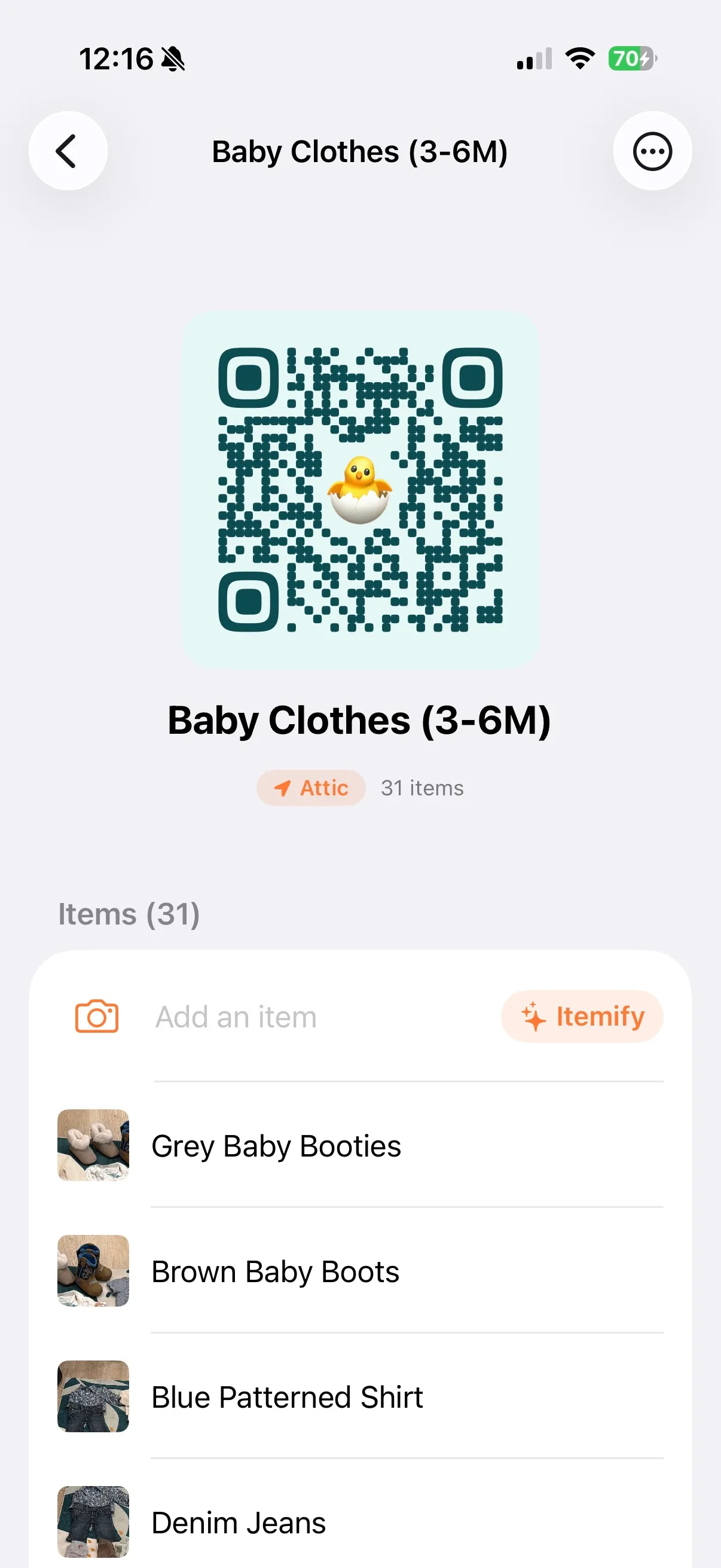
Open a tote and the QR code — the same one you stuck on the box — sits front and center. Big, recognizable, scannable. Title underneath. Location chip. Item count. That's the page.
Tap the title to rename. Tap the location chip to move the tote to another room. Tap the QR itself to restyle the label. No edit screens, no menus to dig through.
Print Label moved up to the toolbar. One tap and the label is on its way to your printer.
Built for iPad
On iPad, 2.0 stretches into a proper two-column layout: QR and tote details on the left, items list on the right. Set the iPad on a shelf and check off bins as you unpack. Run Itemify from the couch. Scan a tote with your phone and watch it open instantly on the iPad.
Update Today
StowQR 2.0 is rolling out on the App Store today. Free to download. Free to try. Already a user? Open the App Store and tap update — every feature in this post is yours the moment it finishes installing.